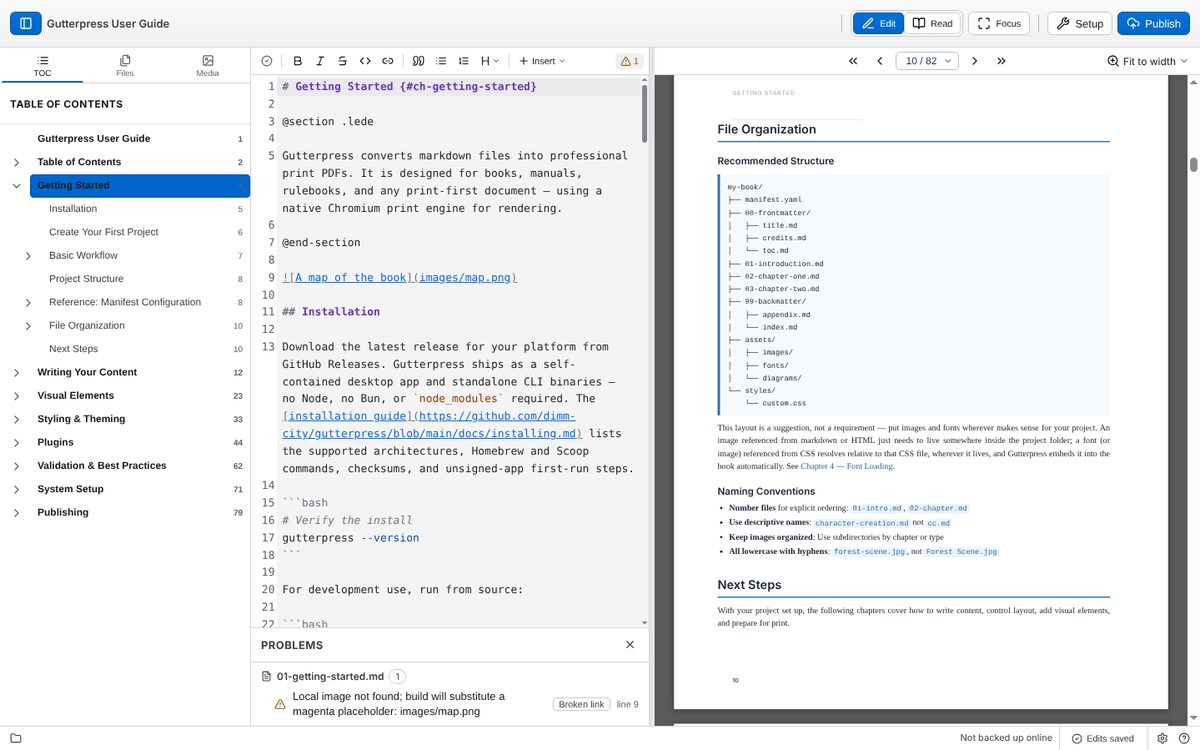
Write and preview your book
The toolbar
Across the top of the window, from the left:
- the panel toggle (Ctrl+) shows or hides the left panel;
- Edit (Ctrl+E) puts the editor and the preview side by side;
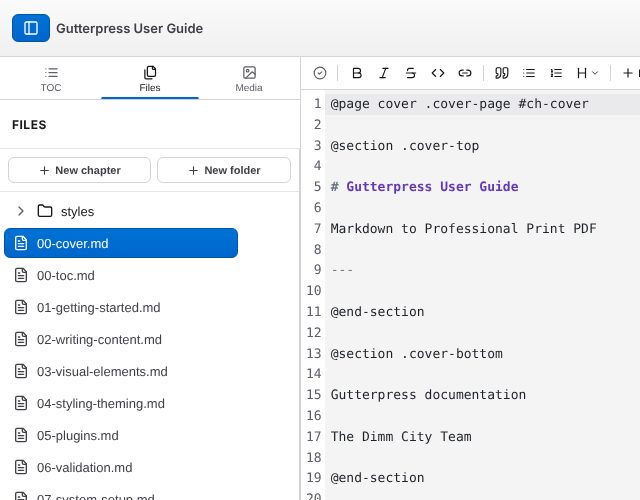
- Read shows the preview on its own, two pages at a time;
- Focus hides the panels and toolbars; press Esc to bring them back;
- Setup (the wrench) opens Book settings;
- Publish opens the Publish view.
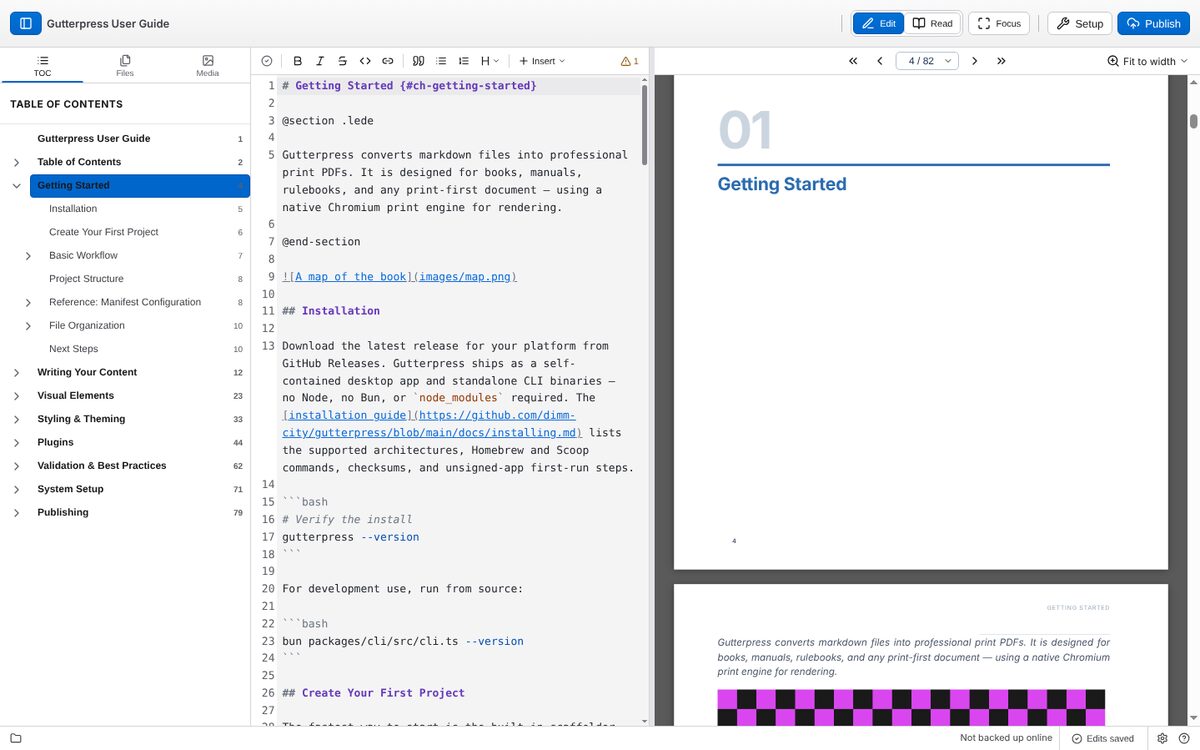
In a narrow window, Edit and Read become Markdown and Preview tabs.
Write
The editor is on the left in Edit mode. Your writing is markdown; the writing chapter covers the syntax and the layout markers.
The editor toolbar has buttons for bold, italic, strikethrough, inline code, links, quotes, bulleted and numbered lists, and a heading picker. Its Insert menu adds a layout block (Chapter, Section, Two columns, Page break, Spread), a horizontal rule, a table, an image or a snippet.
Save (Ctrl+S) saves now; it turns blue when there are unsaved changes. Edits are also saved automatically unless you turn that off in Settings → Saving. The indicator in the status bar reads Edits saved, Saving… or Unsaved changes.
Your book's files and images
The left panel has three tabs:
- TOC — the table of contents; click a heading to go to it.
- Files — your book's chapters. New chapter and New folder are at the top; hover a file for Rename and Delete. Deleting asks you to confirm, and the "Deleted" message that follows has an Undo button for the most recent delete.
- Media — your book's images. Add images… adds images to the book; select one and choose Insert into document to put it at the cursor.
Preview
The preview shows your book's pages exactly as they will print, and updates as you type.
- Turn pages with the buttons above the preview (first, previous, the page picker, next, last), with a flick of the mouse wheel over the preview, or with the keys below.
- Zoom with the menu at the top right of the preview: Fit to width or 25%–200%. The starting zoom is set in Settings → App → Preview.
| Key | Does |
|---|---|
| Right arrow or Page Down | Next page |
| Left arrow or Page Up | Previous page |
| Home / End | First / last page |
| + or = / - | Zoom in / out |
| F | Fit to width |
| Ctrl+F | Find in the preview |
The page keys work when you are not typing in the editor or a field.
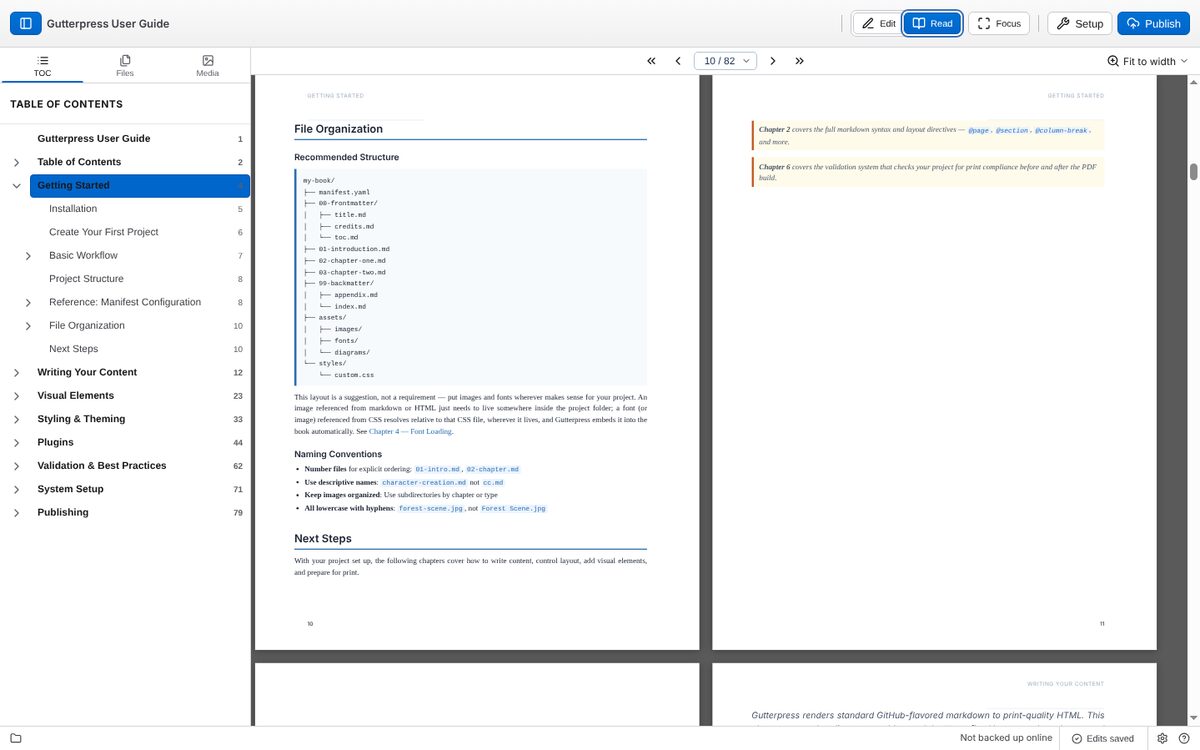
Fix problems
The Problems badge in the editor toolbar checks your book as you work and reads No problems or a summary. Click it to open the list at the bottom of the editor: problems are grouped by file, and clicking one opens the file at the line it is about. Esc closes the list.