
Settings, updates and getting help
The gear at the right of the status bar (or Ctrl+,) opens Settings; the ? next to it opens Help. Both are tabs of the start screen.
Settings
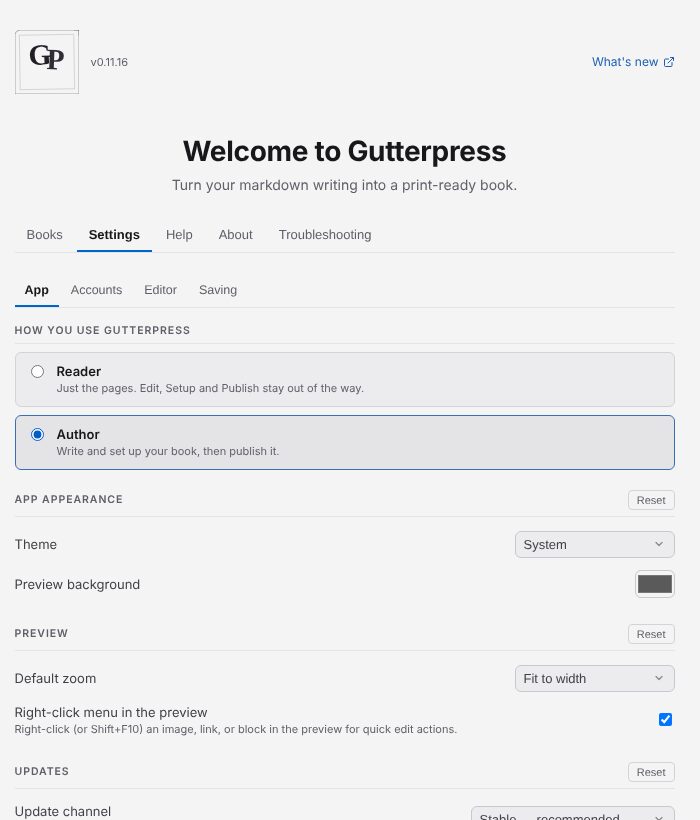
- App — how you use Gutterpress (Reader or Author), the Theme (System, Light or Dark), the preview's background and default zoom, and the update channel. On Linux, Add to application menu adds the AppImage to your desktop's menu.
- Accounts — your name and email, GitHub, Publishing accounts and Git servers.
- Editor — font, font size, line spacing and spell-check language.
- Saving — automatic saving, previous versions and online backup (see Keep versions and back up your work).
Updates
Gutterpress checks for updates itself and shows Update available with a Download button, then Update ready — Restart & update once it has downloaded. On a Mac, the update downloads from GitHub for you to install. To check yourself, open the start screen's About tab and click Check for updates.
The Update channel under Settings → App is Stable — recommended unless you choose Beta or Alpha for early builds.
Get help or report a problem
The start screen's Help tab has help on using the app, and these guides are always at gutterpress.dimm.city/docs.
To report a problem, open Troubleshooting → Report a problem. Copy report copies the details, and Open GitHub issue starts an issue with them; nothing is sent until you submit it. Error messages also offer Report a problem. The Logs and Diagnostics tabs help when something isn't working.