
Insert snippets and components
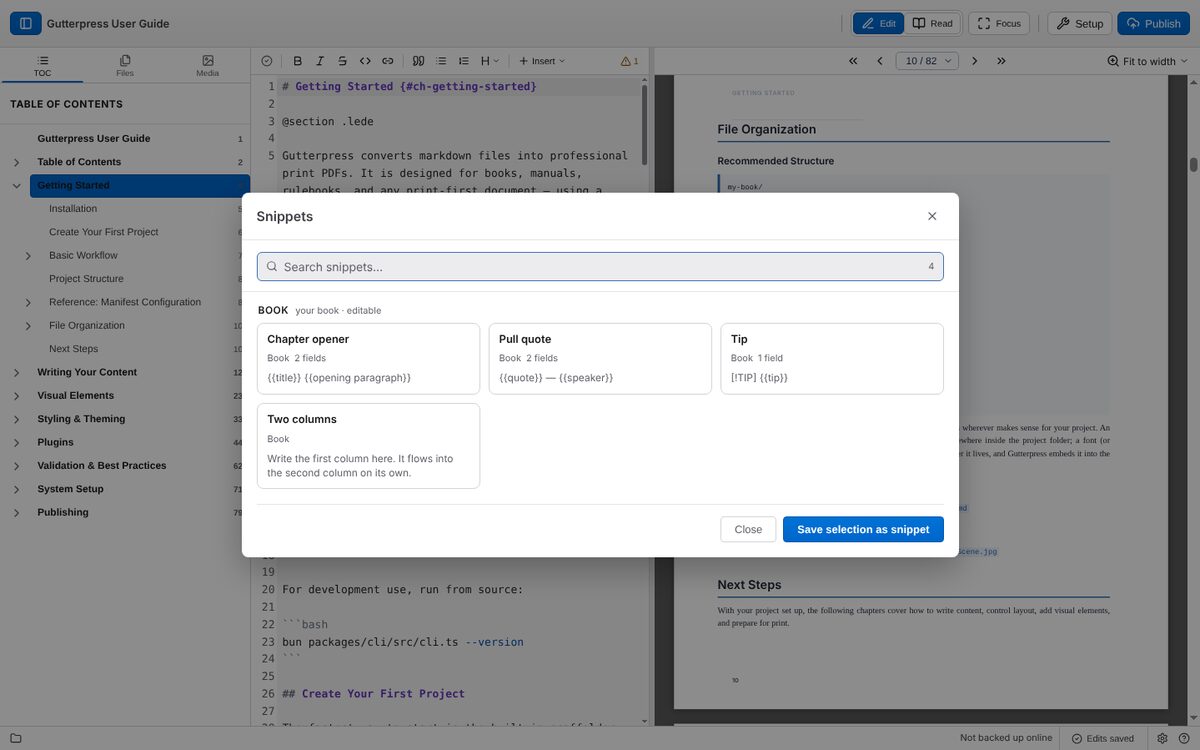
A snippet is a piece of markdown you can insert again and again. Snippets come from three places: your book, the extensions it uses, and Gutterpress itself.
Insert a snippet
- Put the cursor where the snippet should go.
- Press Ctrl+Shift+S (Cmd+Shift+S on a Mac), or choose Insert → Insert snippet in the editor toolbar.
- Type in the search box to filter by name or content. The chips narrow the list to Book, Extension or Core snippets, or to Components only.
- Press Enter to insert the first match, or click a card. The arrow keys move between cards.
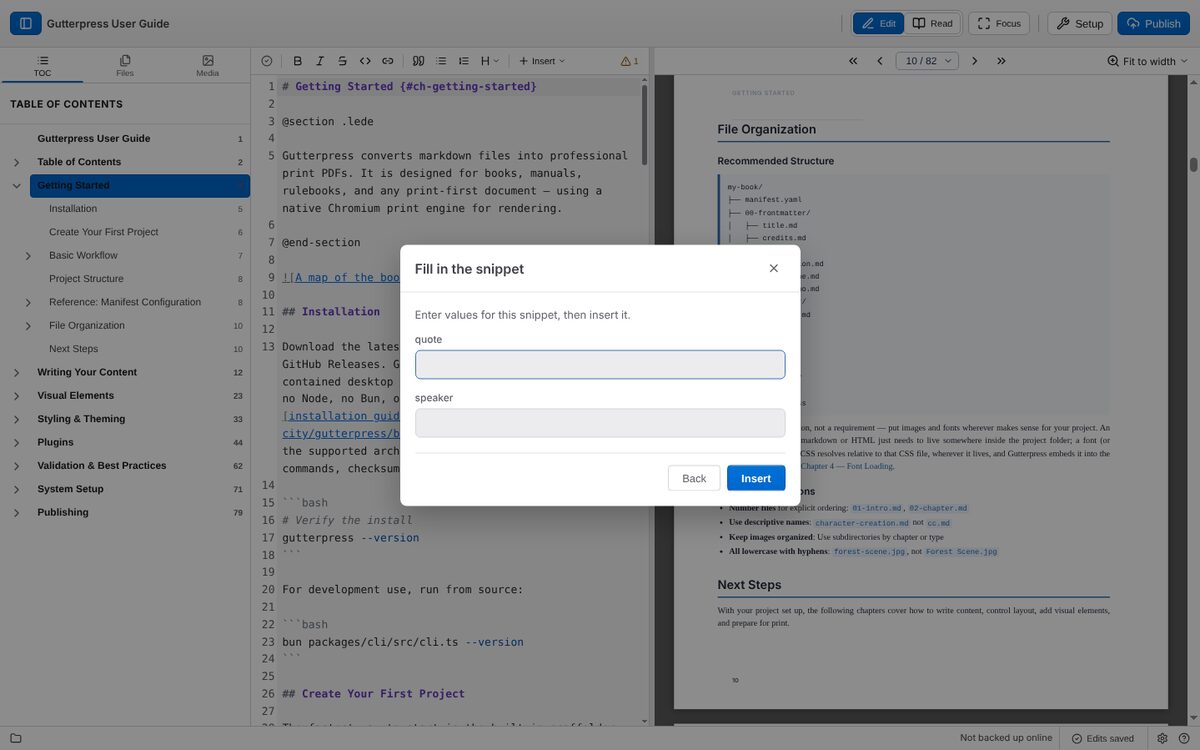
If the snippet has fields to fill in, Gutterpress asks for them under Fill in the snippet; enter the values and click Insert.
Insert a component with @
Type @ at the start of a line to see the layout markers (@chapter, @section, @page,
@spread, @page-break and the rest) and the components your book's plugins add. Keep typing to
narrow the list: @sk offers @skill and each of its variants. Choosing a component inserts its
example, ready to fill in.
Save your own snippet
Select some text in the editor, open the snippet picker, and choose Save selection as snippet. Give it a name under Snippet name and click Save snippet. Your book's snippets can be deleted from the picker with the trash icon; snippets from extensions and Gutterpress are read-only.
Next: change your book's design.