
Create a new book, or open one
Everything starts on the Books tab of the start screen. Click the folder button at the left of the status bar ("Books — open the start screen") to get back to it from a book.
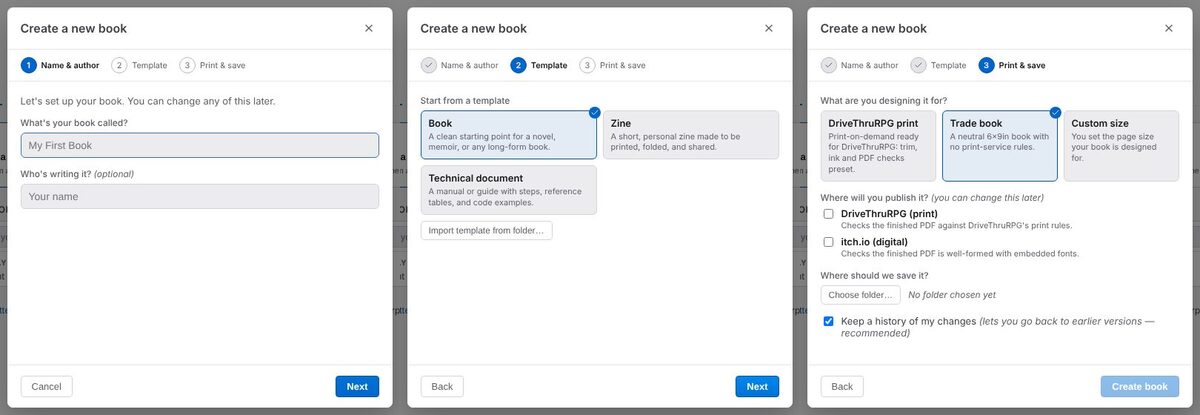
Create a new book
Creating books is for authors: if you don't see it, switch to Author.
- On the Books tab, choose Create a new book.
- Name & author: type the book's name under "What's your book called?" and, if you like, your name.
- Template: pick a starting point — Book (a novel, memoir or any long-form book), Zine, or Technical document — or one of your own saved templates.
- Print & save:
- Under What are you designing it for? choose DriveThruRPG print, Trade book (a neutral 6×9in book), or Custom size and then a page size (US Letter, Trade paperback, Digest, A4, A5, or your own width and height).
- Under Where will you publish it? tick DriveThruRPG and/or itch.io. You can change this later.
- Under Where should we save it? click Choose folder….
- Leave Keep a history of my changes ticked. It keeps earlier versions of your book on your computer, with no account needed (see Keep versions and back up your work).
- Click Create book.
Open a book on this computer
On the Books tab, choose Open a folder and pick the book's folder. You can also paste a folder path into the search box above Your books and click Open.
If the folder isn't set up as a book yet, Gutterpress offers Set up as a book, which lets you edit its design and keep a history of changes. Not now opens it as it is.
Open a book from GitHub
- On the Books tab, choose Open from GitHub.
- Click Connect GitHub, then enter the code Gutterpress shows on the GitHub page that opens.
- Choose the repository. If it holds more than one book, choose the book.
- Pick the version to open, a name, and where to save it on your computer, then open it.
Find your books again
The Your books list on the Books tab has Currently open, Favorites, Recently opened and Discovered sections, and a search box. Click a book's star to add it to Favorites; the X on a recent book takes it off the list (the book itself is not touched). A book whose folder has moved shows Not found.
The book switcher next to the folder button in the status bar switches between books.
Next: write and preview your book.