
Change your book's design
Click Setup (the wrench) in the toolbar to open Book settings. Its tabs are Details, Look, Features and Connections. Close it with the X or Esc.
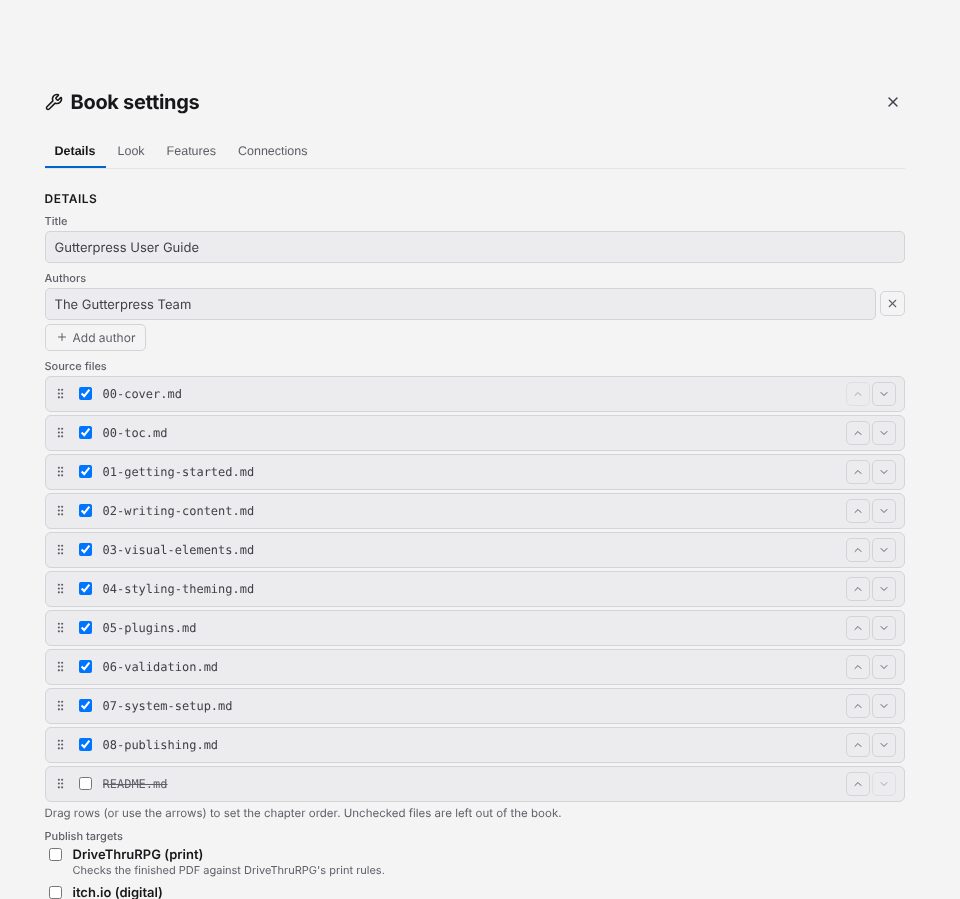
Title, authors and chapter order
On the Details tab:
- set the Title and Authors (Add author adds another);
- under Source files, tick the files that belong in the book and drag them, or use Move up and Move down, to set the order of chapters;
- under Publish targets, tick where you plan to publish.
Click Save details. Save as template… saves this book's setup as a template you can start new books from.
Choose a look
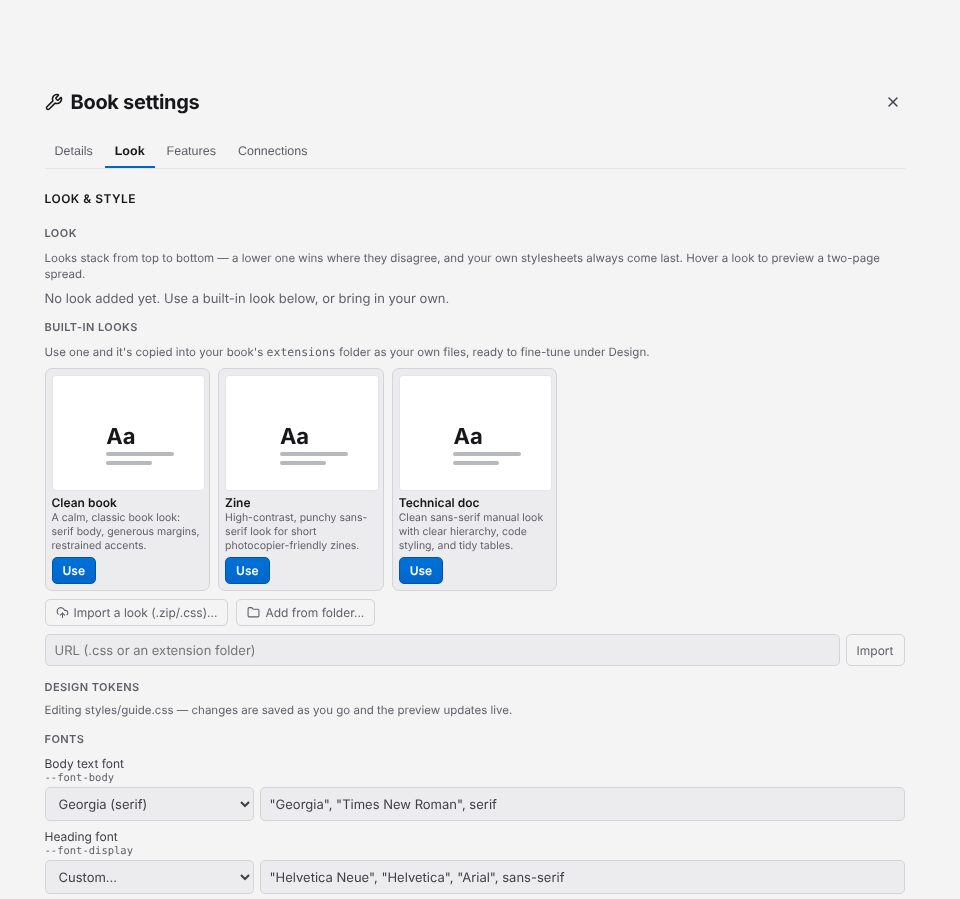
A look is a complete design for a book. On the Look tab, under Built-in looks, click Use on Clean book, Technical doc or Zine. Looks you have added are listed under Look, where each can be turned off, moved up or down, or removed.
To use a look from elsewhere, choose Import a look (.zip/.css)..., Add from folder..., or paste a URL into the URL field and click Import. Find plugins lists looks and other extensions on npm.
Fine-tune fonts, colours and sizes
Under Design tokens on the Look tab, the settings your look offers are grouped into Fonts, Colors, Sizes & numbers and Other. Change a value and the preview follows; Gutterpress saves the change for you. Revert puts a value back; Edit raw CSS opens the stylesheet the values are written to.
Edit stylesheets
Under Stylesheets, each of the book's stylesheets can be turned on or off, and Edit opens it in the editor. The styling chapter covers what a stylesheet can do.
The page size is chosen when you create the book; there is no page-size setting in Book settings.