
Publish your book
Click Publish in the toolbar to open Publish your book. It walks through Format, Choose, a step for each destination, Preflight and Publish.
1. Format
Choose PDF (a print-ready PDF) or Website (a folder with a standalone book.html).
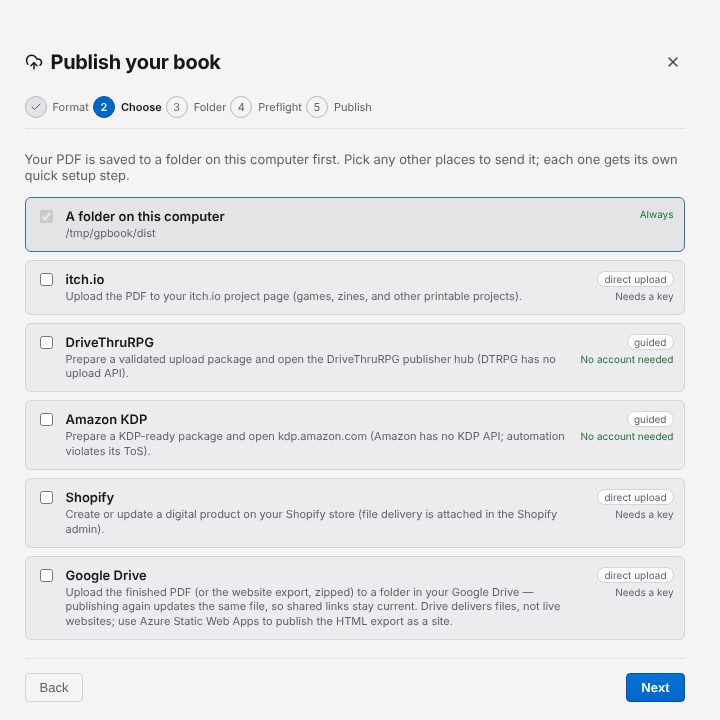
2. Choose where it goes
A folder on this computer is always included. Tick any other destinations. The list shows the ones that take the format you chose: Azure Static Web Apps appears for Website, and Google Drive for both.
| Destination | How it publishes |
|---|---|
| itch.io | Uploads the PDF directly |
| DriveThruRPG | Guided: Gutterpress prepares the file and opens the upload page |
| Amazon KDP | Guided |
| Shopify | Uploads the PDF directly |
| Google Drive | Uploads the PDF, or the website as a zip |
| Azure Static Web Apps | Uploads the website (needs Microsoft's SWA CLI) |
Each destination shows whether it is Connected, Needs a key, or needs No account.
3. Set up each destination
Each destination you ticked has its own step:
- itch.io: enter the Project (user/game) and Channel, paste an API key and click Connect. Create an API key opens the page where you make one.
- Shopify: enter the Store domain (and optionally a product ID), paste an API key and click Connect.
- DriveThruRPG: optionally paste an Existing product URL.
- Azure Static Web Apps: enter the Environment and connect.
- Google Drive: click Connect Google Drive, choose your Google account in the browser and click Allow. Once it says "Connected", pick a folder with Choose a folder… or make one with New folder….
- Folder: choose where the file goes on your computer.
Click Save settings to keep a destination's settings with your book. Keys are stored on your computer only. You can also add accounts under Settings → Accounts → Publishing accounts.
Preflight
Preflight checks the book before anything is sent. It reports All clear — ready to publish., things to review, or problems to fix; Go to takes you to each one, and Re-run checks again. You can still Publish anyway.
4. Publish
Click Publish (or Save if only the folder is ticked). Each destination reports back: Show in folder for your copy, View it online for an upload, and for guided destinations Open upload page with a checklist of what to do there.
The privacy policy explains what Google Drive publishing can access.