
Keep versions and back up your work
Where your work is kept
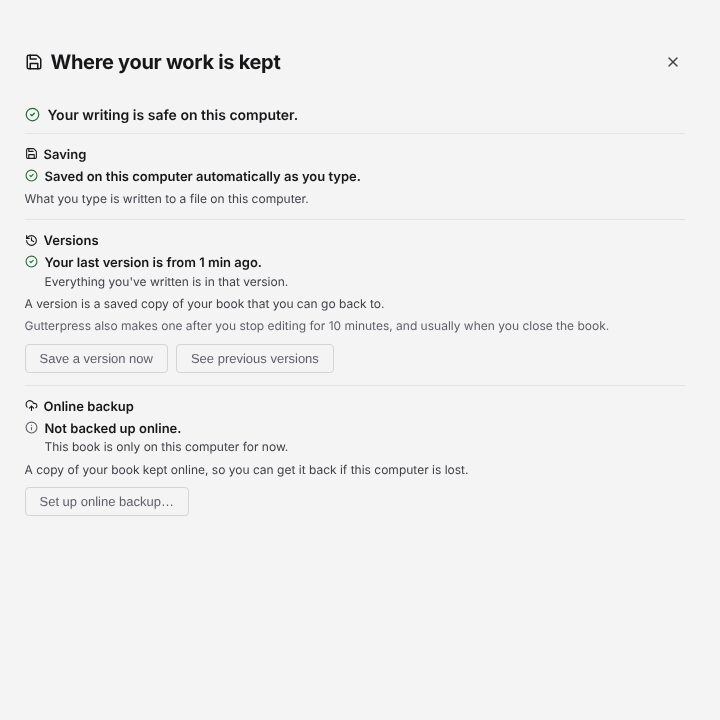
The indicator in the status bar shows whether your edits are saved: Edits saved, Saving…, Unsaved changes or Couldn't save. Click it to open Where your work is kept, which has three parts:
- Saving — Save now saves immediately.
- Versions — Save a version now keeps a copy of the book as it is, and See previous versions lists them. If the book is a plain folder, Start keeping versions turns this on.
- Online backup — Back up now copies your versions to your online backup.
Next to the indicator, a status shows the online backup: for example Backed up online, Backing up…, Not backed up online, or Offline — edits are saved on this computer.
Go back to an earlier version
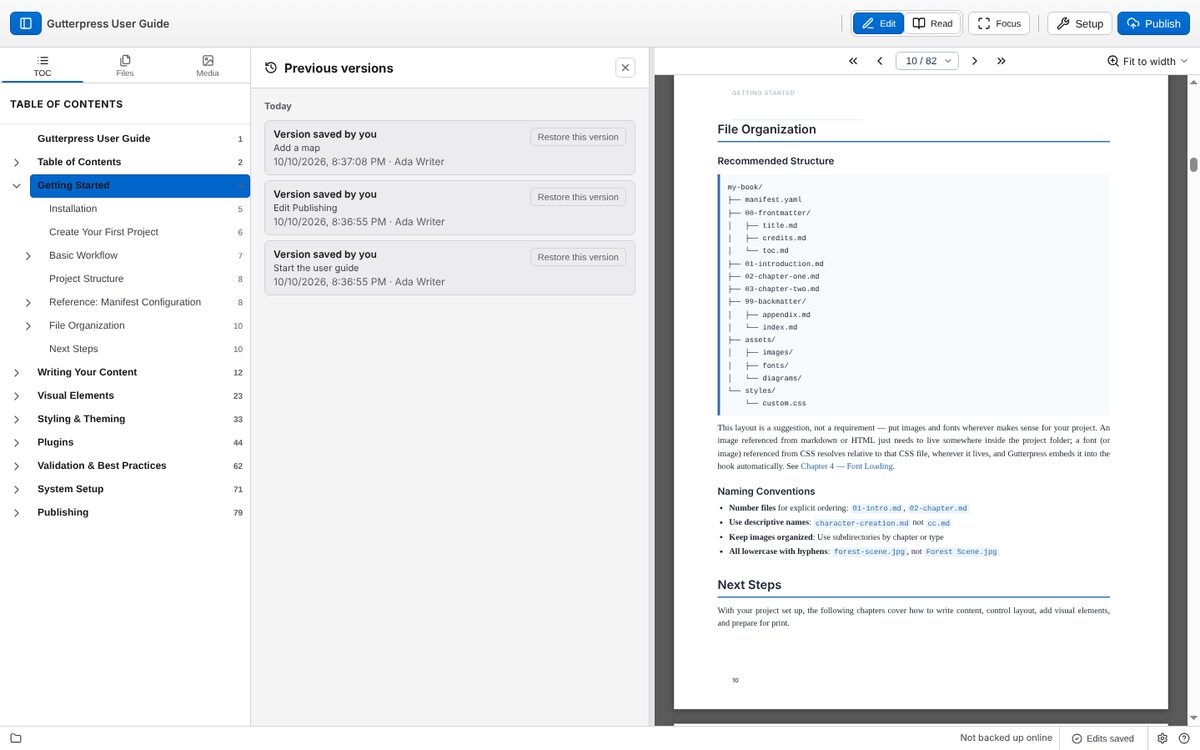
- Click the save indicator, then See previous versions.
- Find the version you want and click Restore this version.
- Confirm with Yes, restore. Gutterpress saves your current work as a version first, so nothing is lost.
Back up online
Online backup keeps a copy of your book's versions on GitHub (or another Git server).
- Connect your account: Settings → Accounts → GitHub → Connect GitHub…, then enter the code shown on the GitHub page.
- Online backup works for a book that already has an online copy, such as one you opened with Open from GitHub. Setup → Connections shows a book's folder, its online repository and branch.
Settings → Saving has the switches: Save edits automatically, Keep previous versions and Keep this book backed up online.