
Save a PDF
PDFs are made from the Publish view, where a folder on your computer is always one of the destinations.
- Click Publish in the toolbar.
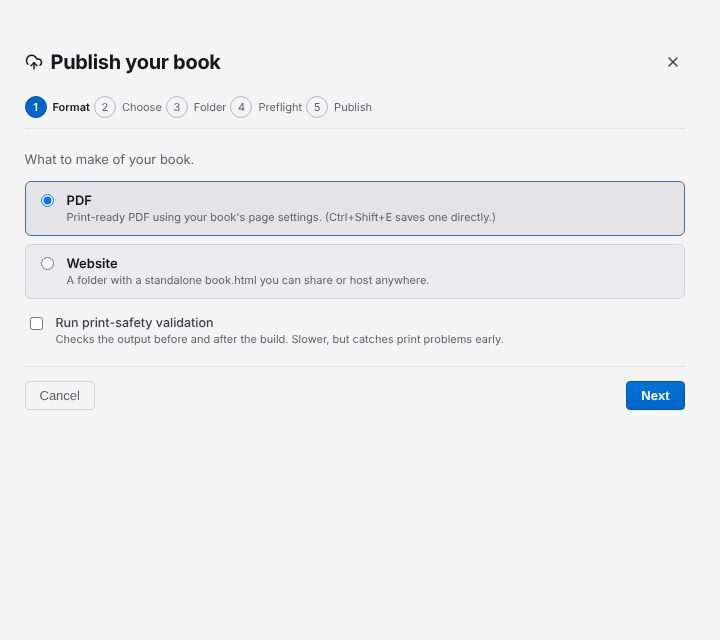
- Under Format, choose PDF ("Print-ready PDF using your book's page settings"). Leave Run print-safety validation ticked to check the PDF for printing problems as it is made.
- On the Folder step, the PDF goes to the
distfolder inside your book unless you choose another folder with Choose…. - Preflight checks the book is ready (see Publish your book).
- Click Save. When it finishes, Show in folder opens the folder with your PDF.
Shortcut: Ctrl+Shift+E (Cmd+Shift+E on a Mac) saves a PDF straight away: choose where in the save dialog, and "PDF saved to …" tells you when it's done, with Show in Folder.
The PDF uses your book's page size and design exactly as the preview shows it. To make a website of your book instead, choose Website under Format.
Next: publish your book.